How to Unsubscribe From Emails Safely (Plus Temp Mail Tips)
On this page
- Why Clicking "Unsubscribe" Isn't Always Safe
- Legitimate Marketing vs. Suspicious Spam: How to Tell the Difference
- How to Unsubscribe From Emails Using Built-In Mail Buttons
- When and How to Use the Email Footer Link Safely
- What to Do When Unsubscribing Doesn't Work
- Why You Should Think Twice About "One-Click Inbox Cleaner" Apps
- Stop Marketing Emails Before They Start With Temp Mail and Disposable Email
Knowing how to unsubscribe from emails safely comes down to one simple rule: only opt out from senders you recognize and trust. For legitimate newsletters and store promotions, the safest method is clicking the built-in "Unsubscribe" button provided at the top of your email app rather than following links inside the message body. For suspicious messages you never signed up for, mark them as spam instead of clicking anything, and use a temp mail (disposable email) address next time you sign up for one-off websites so you can stop marketing emails before they ever reach your personal inbox.
Why Clicking "Unsubscribe" Isn't Always Safe
For years, well-meaning advice told internet users to scroll to the bottom of every unwanted email and click the opt-out link. When you are dealing with a reputable company—like an airline you flew with last year, a software service you tested, or an online retailer where you bought shoes—that advice works well. Legitimate businesses follow consumer protection laws such as the US CAN-SPAM Act and the UK and EU GDPR, which require them to honor opt-out requests promptly.
The problem arises when you treat shady spam the same way you treat a retail newsletter. Scammers and aggressive bulk mailers do not follow marketing laws. They send messages to millions of guessed or leaked addresses hoping to find out which inboxes are actually monitored by a real human being.
When you click a fake unsubscribe link at the bottom of a suspicious message, three things can happen:
- You confirm your inbox is active: Just like email tracking pixels notify a sender when you open a message, a unique link in the footer tells the spammer that a live person reads this address. Your email immediately becomes more valuable and gets sold or shared onto more lists.
- You land on a phishing site: The link may take you to a convincing replica of your email provider's sign-in page, claiming you need to "sign in to confirm your communication preferences." If you type your password, the attacker hijacks your account.
- You visit an unsafe webpage: Malicious links can redirect your browser through ad-fraud networks or attempt to trick you into downloading malicious software disguised as a browser update or document.
Rule of thumb: If you do not recognize the company, never gave them your address, or notice obvious red flags of a fake email, do not click the unsubscribe link. Use your email provider's "Report Spam" button instead.
Legitimate Marketing vs. Suspicious Spam: How to Tell the Difference
Before you click anything, take five seconds to evaluate who sent the message and how they got your address. Legitimate companies use recognizable domains and reputable email delivery services, whereas spammers hide behind lookalike domains, random strings of letters, or free webmail accounts.
Use this quick comparison table to decide the safest way to handle any unwanted message in your inbox:
| Type of Email | Common Signs | Safe to Click Unsubscribe? | Best Action to Take |
|---|---|---|---|
| Known Brand or Retailer | You created an account, bought an item, or downloaded a resource from them; sender domain matches the official website. | Yes | Click the built-in Unsubscribe button at the top of your mail app, or use the footer link. |
| Cold B2B Outreach or Affiliate Lists | A real company you never contacted directly (often bought your address from a data broker or partner list). | Usually, with caution | Use your mail app's native Unsubscribe button first; if unavailable, block the sender or filter their domain. |
| Obvious Spam or Scam Offers | Fake prize alerts, miracle health products, crypto schemes, mismatched sender addresses, or generic greetings. | No — Never | Do not click any links inside the email. Click "Report Spam" and delete the message. |
| Account or Security Alerts | Claims your bank, delivery, or cloud account is locked, featuring an "Unsubscribe" link at the bottom to look authentic. | No — Never | Report as phishing. Real security alerts are transactional and rarely have marketing opt-out links. |
How to Unsubscribe From Emails Using Built-In Mail Buttons
The safest way to unsubscribe from emails without opening a potentially risky webpage in your browser is to use the native unsubscribe button built into modern email clients like Gmail, Apple Mail, Outlook, and Yahoo Mail.
Behind the scenes, this button relies on a technical standard called the List-Unsubscribe header (standardized by the Internet Engineering Task Force in RFC 8058). Major email providers require legitimate bulk senders to include hidden instructions in the email header that allow your mail app to send an automated opt-out signal in the background. When you click the app's button, your email service handles the request for you—meaning you do not have to load an external website or solve a confusing opt-out form.
In Gmail (Web and Mobile App)
- Open the unwanted marketing email from a sender you recognize.
- Look right next to the sender's name and address at the top of the message (or at the very top right of the screen on the mobile app).
- Click or tap the Unsubscribe button.
- A small confirmation pop-up will appear. Click Unsubscribe again to let Google send the automated opt-out request on your behalf. (In rare cases where the sender only provides a web link, Gmail will warn you before opening the link in a new tab.)
You can read more about how Google processes these requests and blocks unwanted senders on the official Gmail Help page.
In Apple Mail (iPhone, iPad, and Mac)
- Open the newsletter or promotional email in Apple Mail.
- Look at the banner directly above the message content, which says, "This email is from a mailing list."
- Tap or click Unsubscribe in that banner and confirm your choice in the pop-up dialog. Apple Mail immediately transmits a background opt-out message to the mailing list server.
In Microsoft Outlook
- Open the promotional message in Outlook on the web or in the desktop/mobile app.
- Look just beneath or beside the sender's address line for the Unsubscribe link generated by Outlook.
- Click it and confirm. If the sender is on your contacts list or does not support header-based unsubscribing, you can use the Block option from the three-dot menu instead.
When and How to Use the Email Footer Link Safely
Sometimes a legitimate smaller business, local club, or community newsletter will not display the automatic button at the top of your mail app. In those cases, using the link at the bottom of the email is fine, provided you check a few basic details first.
- Hover before you click: On a computer, move your mouse cursor over the "Unsubscribe" or "Manage Preferences" link without clicking. Look at the preview URL in the bottom corner of your browser or mail client. Does it point to the company's actual website or a well-known email marketing platform? If it points to a bizarre, unrelated domain with a strange extension, leave it alone.
- Never enter your password: You should never have to log into your account just to stop receiving promotional emails. If an unsubscribe link asks for your password, credit card, or personal details, close the tab immediately.
- Watch out for dark patterns: Some sneaky marketers pre-check boxes or phrase their buttons confusingly (such as "Uncheck this box if you do not want to stop receiving updates"). Read the confirmation screen carefully before clicking Submit.
What if a social network or shopping app requires a login to change notification settings? Do not click the link in the email. Instead, open a fresh browser tab, go directly to the service's official website or mobile app yourself, sign in safely, and turn off email notifications in your account settings.
What to Do When Unsubscribing Doesn't Work
We have all encountered senders who ignore opt-out requests, or newsletters where the unsubscribe page displays an error message. When polite opting out fails, you have three effective tools inside your inbox to take back control. (For a deeper dive into inbox hygiene, check out our guide on 12 ways to stop spam and keep your inbox clean.)
1. Report as Spam
As the US Federal Trade Commission (FTC) advises, reporting unwanted messages as spam does more than move that single email out of sight. It trains your email provider's filtering algorithms both for your own inbox and for millions of other users. If enough people report a persistent marketer as spam, their domain reputation drops, and their future campaigns go straight to everyone's junk folder.
2. Block the Sender
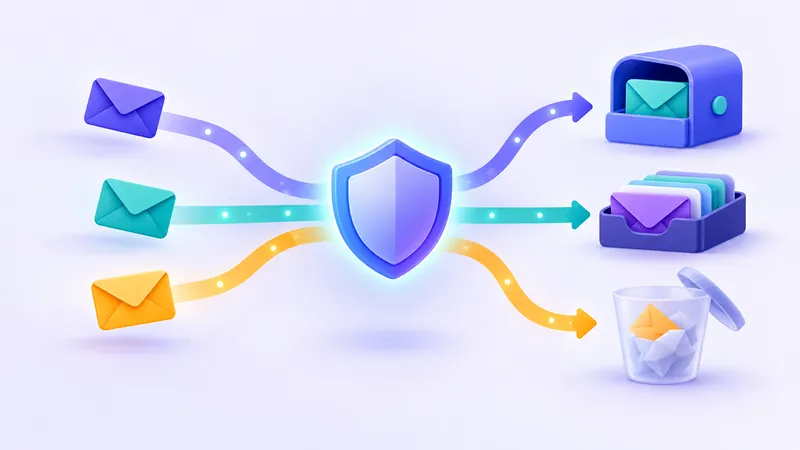
If a specific person or company keeps emailing you from the same address, click the menu icon next to their name and select Block. Blocked senders will have all future messages routed directly to your Spam or Trash folder without triggering notifications on your phone.
3. Create Custom Inbox Filters
Aggressive marketers often bypass simple address blocks by sending from slightly different addresses each week (such as deals@promo1.example.com followed by offers@promo2.example.com). You can defeat this with an inbox filter:
- Filter by brand name or phrase: Create a rule in your email settings that checks if the sender name or message body contains a specific phrase used only by that pest, and set the action to Delete it or Skip the Inbox (Archive it).
- Filter with plus addressing: If you signed up using an alias like
yourname+shopping@gmail.com, you can set a filter that automatically trashes anything sent to that exact+shoppingaddress.
Why You Should Think Twice About "One-Click Inbox Cleaner" Apps
When your inbox is overflowing with hundreds of promotional messages, third-party "unsubscriber" apps and browser extensions can look tempting. They promise to scan your entire email history, list all your subscriptions on one dashboard, and let you opt out of dozens of lists at once.
Before connecting a third-party cleanup tool to your primary email account, consider the privacy trade-off. To find your newsletters, these services require full read—and often write—access to your inbox. That means their servers can technically access not only your shoe coupons, but also your tax documents, medical confirmations, travel itineraries, and password reset links. In the past, some free inbox-cleaning tools made money by scanning users' shopping receipts to sell anonymized consumer market research. Using the native tools already built into your email provider is much safer for your privacy.
Stop Marketing Emails Before They Start With Temp Mail and Disposable Email
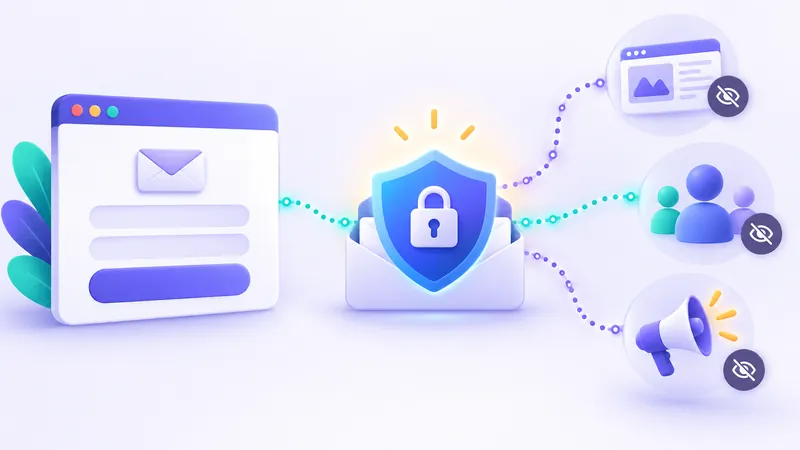
Learning how to unsubscribe safely fixes yesterday's clutter, but preventing unwanted marketing emails in the first place is much easier. Think about how your email address ended up on so many mailing lists: a 10% discount pop-up on a store you bought from once, a free PDF guide you downloaded for work, an airport Wi-Fi login screen, or a website forcing you to register just to read an article.
Whenever a site demands an email address for a one-time interaction and you do not need a permanent account, use a temporary email instead of your real one. This is one of the smartest ways to shop and browse online without the marketing spam.
With FakeEmail.net, you get a free disposable email address the moment you open the website—no registration, password, or personal details required:
- Copy your temporary address: Open FakeEmail.net to see a random address ready to use, or click the Change button to pick your own username on one of our domains. You can keep up to 10 addresses in a single browser session.
- Paste it into the sign-up form: Use the temporary address to claim your coupon code, download an e-book, or verify a trial account.
- Read your code and walk away: The inbox on the page refreshes automatically so you can grab your confirmation link or coupon immediately. Once you close your session (or after about two hours of inactivity), your browser session ends—and any follow-up marketing newsletters sent to that address will never touch your real inbox.
Remember the golden rule of temp mail: Temporary addresses on FakeEmail.net are receive-only and are not private mailboxes—anyone who knows or guesses an address can open its inbox, and you can reopen an address later with the "Change" button. Never use a disposable email for banking, work, healthcare, or any account containing sensitive personal information or requiring password recovery later.
By reserving your personal email address strictly for people and services you genuinely care about—and handing out a disposable address for everything else—you will rarely have to hunt for an unsubscribe button again.
Frequently asked questions
Why am I still getting emails after I clicked unsubscribe?
Legitimate companies sometimes use separate systems for different marketing lists or take a few days to sync their databases across all servers. However, if you still receive emails more than a week after unsubscribing, the sender is ignoring your request—stop clicking their links and use your email app's Block or Report Spam button instead.
Does marking an email as spam automatically unsubscribe me?
Often, yes. Modern providers like Gmail and Yahoo frequently send an automated List-Unsubscribe signal to the sender when you click 'Report Spam', while simultaneously training your personal spam filter to route any future emails from that sender directly to your junk folder.
Is it safe to click the unsubscribe button at the top of Gmail or Apple Mail?
Yes, using the built-in Unsubscribe button next to the sender's address is much safer than clicking links inside the email footer. Your email provider processes the opt-out request in the background using verified message headers, protecting you from loading potentially malicious websites.
Should I reply 'STOP' to an unwanted email to unsubscribe?
No. While replying 'STOP' works for automated SMS text messages, replying to an unwanted email almost never removes you from a mailing list. Instead, it proves to the sender that your email address belongs to an active human who reads and responds to messages.
Can I use a temp mail address when a website forces me to subscribe to a newsletter?
Yes, a free temp mail service like FakeEmail.net is ideal for gated downloads, discount pop-ups, and one-time verifications. Just remember that temporary inboxes are public and receive-only, so you should only use them for non-sensitive sign-ups you do not need to keep long-term.
Need a disposable address right now? Get one free in a single click — no sign-up.
Get a temp email